Fixing Errors in the Joy AI Workflow
While making updates within the Joy system, you may come across Workflow Error notifications which are there to alert you when something within the workflow is incomplete. In this article we'll go over the different Workflow Errors you may encounter and how to fix them.
In this article we'll discuss:
Where to Find Workflow Errors
1
While looking at your Joy Workflow, you'll see a triangular alert icon in the upper left-hand corner next to the name of your workflow. If there are errors, there will be an orange dot within the triangle.

2
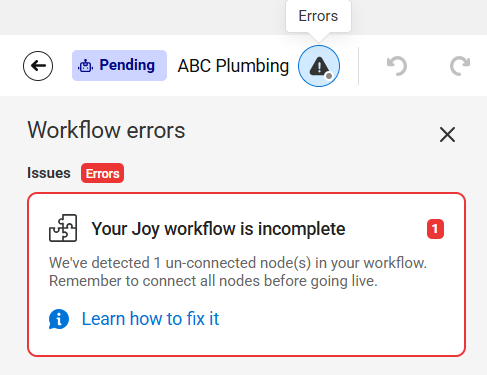
Click on that icon to expand the Errors window. You'll see a list of each error and a short description explaining what is wrong.
How to Fix Workflow Errors
In the example above, the system is showing that the workflow is incomplete, meaning that if Joy follows that incomplete path, we won't be able to successfully handle the call. Just like a regular script, we want to make sure that all paths are complete and result in an action (a message being sent, a call being transferred, an appointment being scheduled, etc.)
1
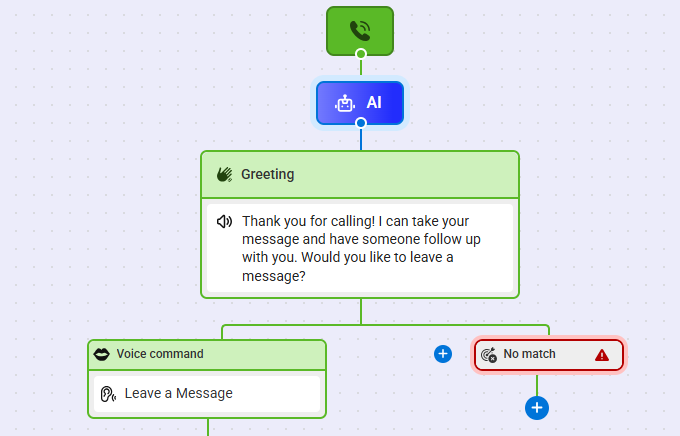
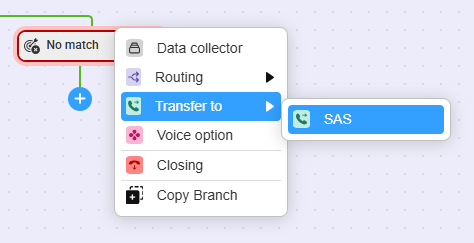
To fix this error, click on the blue + sign underneath the incomplete path to add an action. Depending on what you want the system to do, you'll choose the applicable option. In this example, we want No Match calls to result in a transfer to a live agent.
2
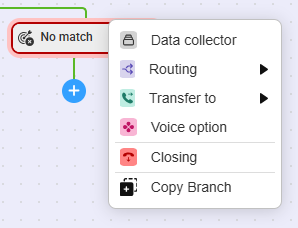
We'll select the Transfer to option, and then select SAS
3
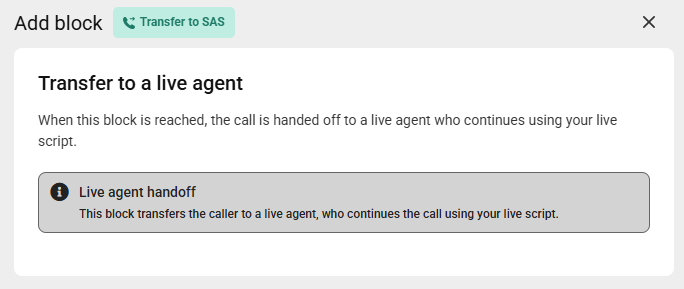
After selecting this option, a bump-out will appear on the right-hand side of your screen which explains what this action will do. If you want to continue with this action, click Save in the bottom right-hand corner.
4
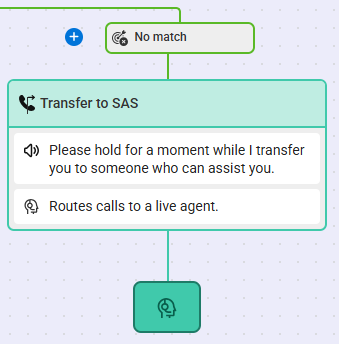
Your workflow will now look like the image below, and the error icon will disappear.