Adding a Transfer Option Within Joy AI

If our Joy AI system is unable to hear, understand, or assist with a caller's needs, we'll automatically transfer the caller over to a live agent. However, clients who utilize Joy AI may also want our AI system to collect basic information from callers first, then transfer the call over to a live agent to continue handling. In this tutorial we'll show you how to add a Transfer to Agent option within the Joy AI builder.

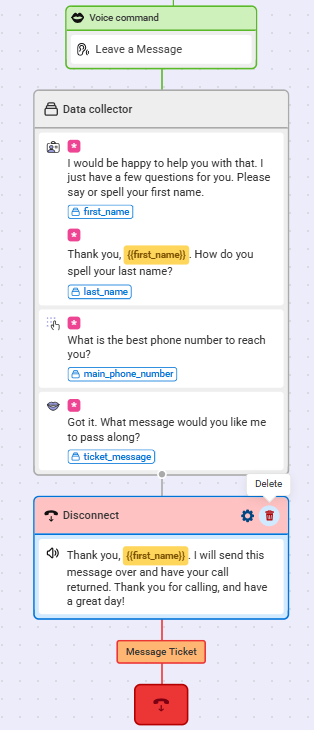
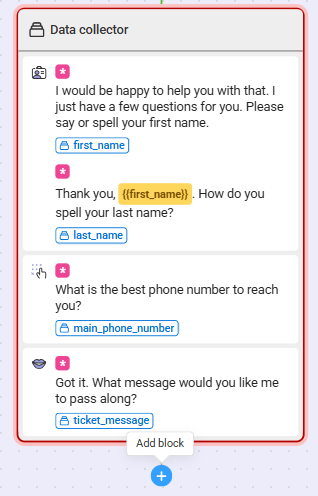
Currently, our main path has Joy collecting basic information from callers and then sending a message through. In this tutorial, we will remove the current Closing option and replace it with a Transfer to Agent option instead.
1
Within the Joy AI builder, hover over the Closing section you want to remove and click the Trash icon to remove.

2
Next, click the blue + icon beneathe the section to add a new block.

3
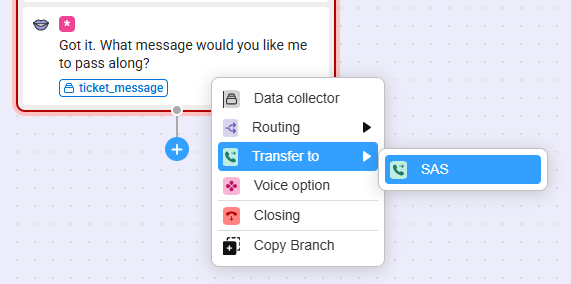
From the drop down, select Transfer to then select SAS.

4
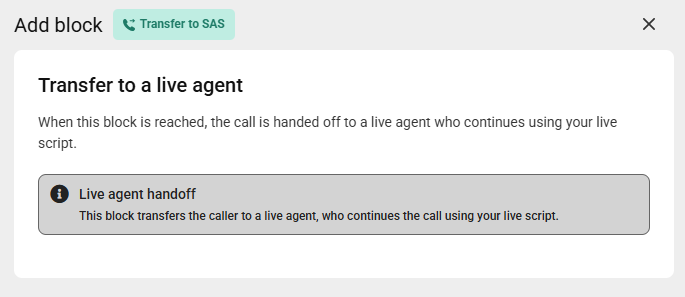
A bump out will appear on the right-hand side of your screen detailing the Transfer to SAS. Click Save.

5
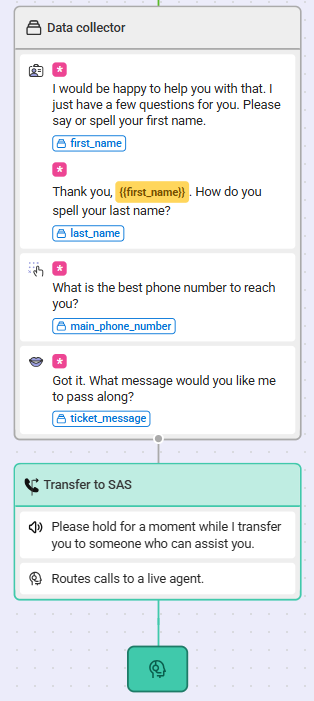
Your newly updated workflow will look something like the image below.

6
When you are finished making updates to your Joy AI workflow, don't forget to publish your changes in the upper right-hand corner.

Did this answer your question? Thanks for the feedback There was a problem submitting your feedback. Please try again later.

Still need help? Contact Us Contact Us