Understanding the Joy AI Builder
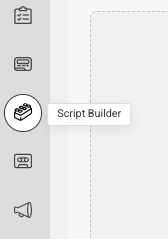
Just like a normal script SAS operators use to handle your calls, Joy follows a script as well. And, just like users can make updates in real time to their scripting, users can also make updates in real time to their Joy script via their SAS Flex portal. In this article we'll show you how to access Joy and make updates via the Joy Builder. If you haven't already activated Joy, check out this article first.
In this article we'll discuss:
Accessing the Joy AI Builder


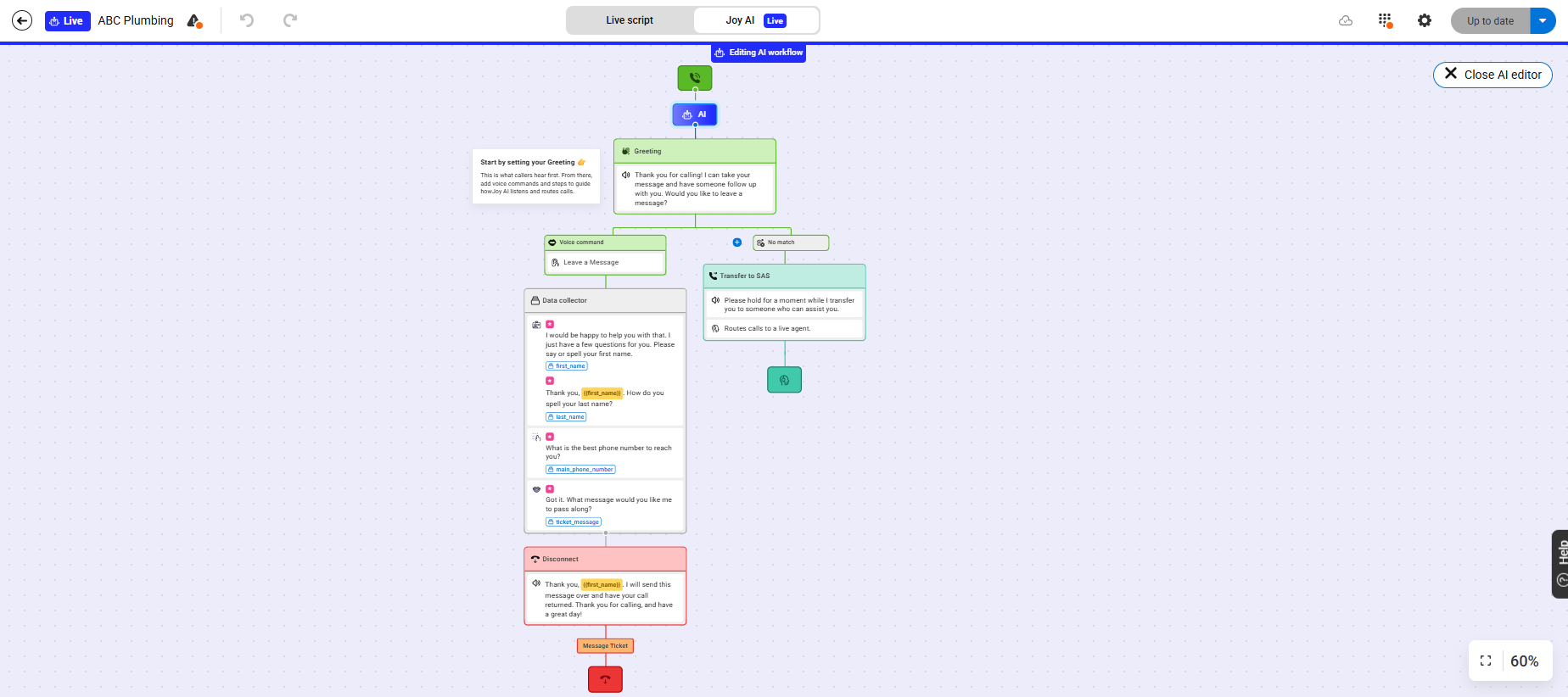
Components of the Joy AI Builder
- Exit the workflow
- See the status of your workflow
- Update the name of your workflow
- View workflow errors (if applicable)
- Undo or Redo changes

- Assign a number to your Joy AI script
- Turn Joy AI off
- Restore a workflow from the original set up or the last published configuration

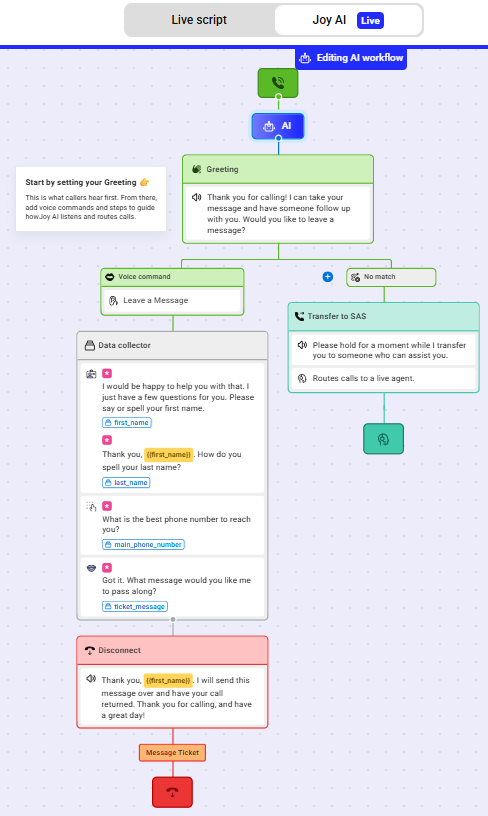
Configurable Options Within Joy
Depending on what you want Joy to do, there are a number of different tools to build out your AI workflow. We'll briefly introduce all of the available building blocks within Joy below. To learn how to use specific blocks, simply click on the hyperlink associated with the block you wish to learn more about!
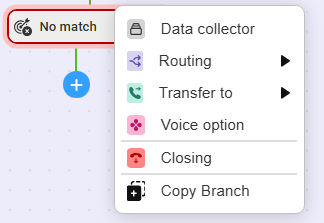
- Data Collector: If this option is chosen, users will be able to activate different data collectors via toggles. Standard data collectors include gathering the caller's Name, Number, Email, Address, Company and Message. However, users can add custom data collectors as well.
- Routing: If this option is chosen, users will be able to configure time and day routing so that Joy can handle calls differently based on the day and time.
- Transfer to SAS: If this option is chosen, callers will be transferred to a live agent.
- Voice Option: This option allows a user to configure another voice prompt for Joy to read to your callers, like a secondary set of questions.
- Closing: This option will allow a user to configure a Closing to end the call.
- Copy Branch: This option will allow a user to copy an existing branch of the workflow.
Additional Settings within Joy AI
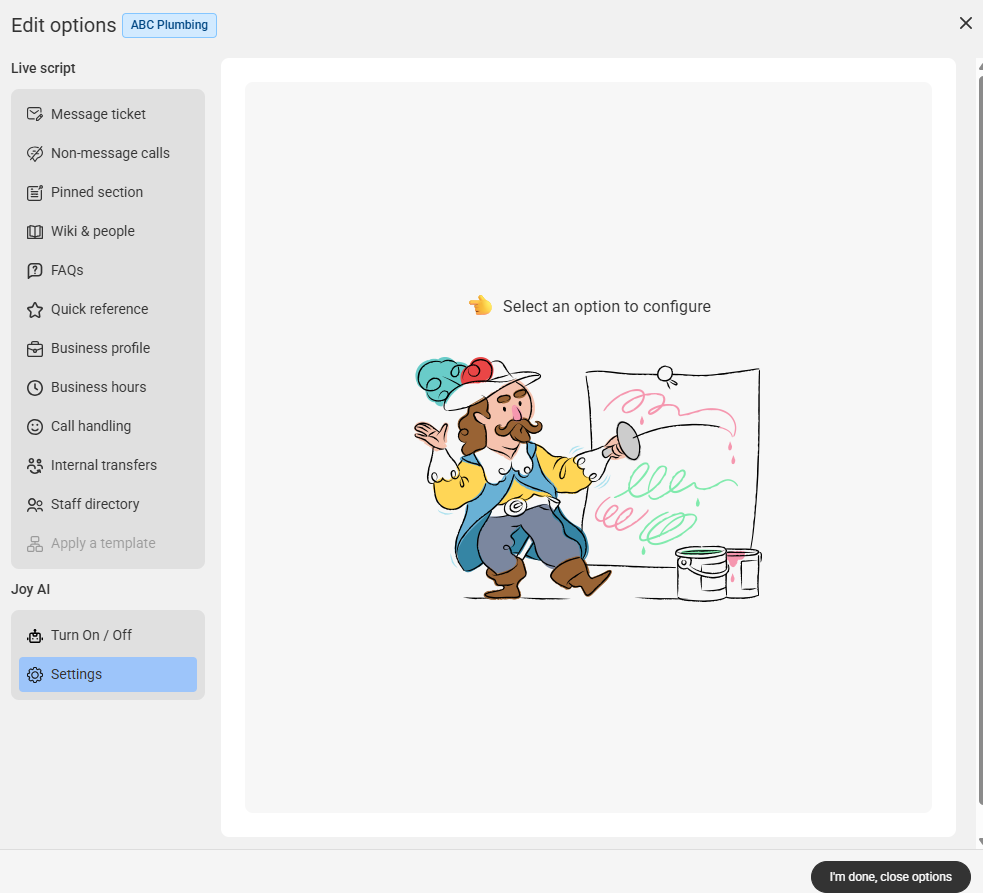
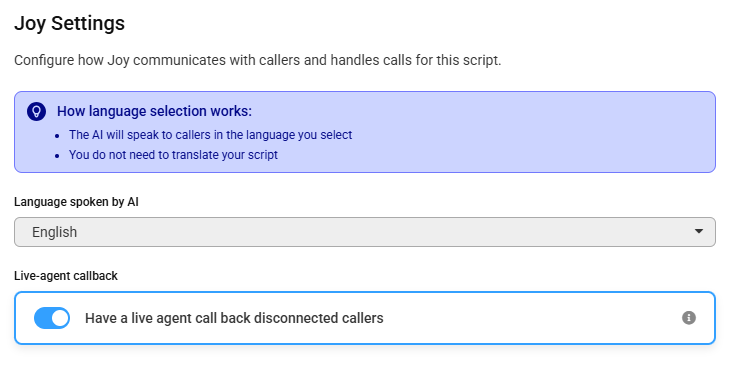
Aside from the standard workflow, there are additional settings that can be configured within Joy, including changing the spoken language and turning on live agent callbacks. We'll show you how to configure both in this section.