Previewing Your Joy AI Workflow
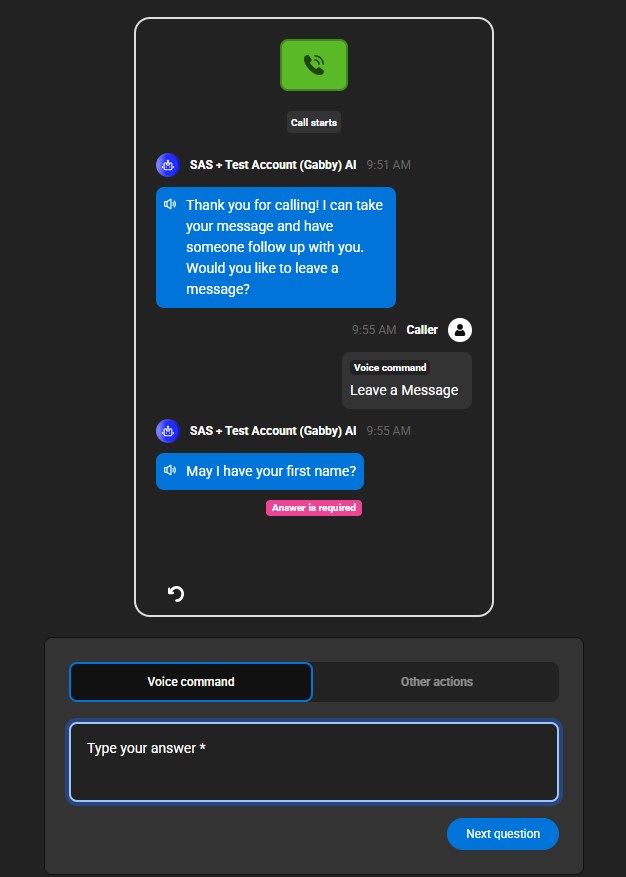
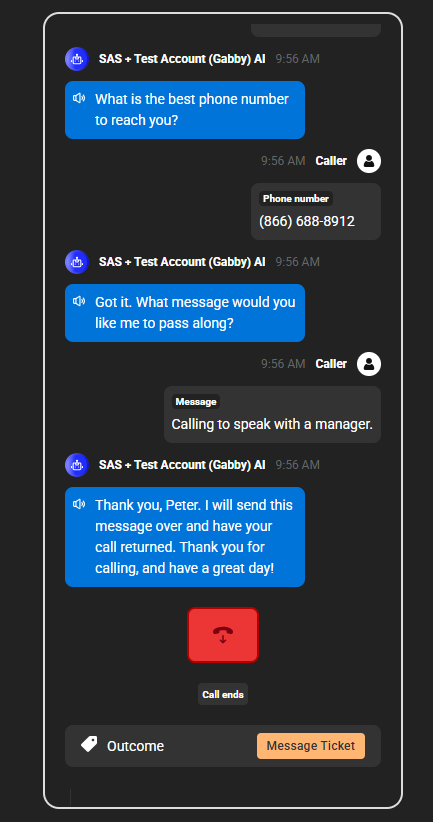
Just like you can preview a Live Agent Script, you can preview a Joy AI Script as well. Previewing your Joy AI workflow allows you to enter in data as if you were the caller to get a feel of how interactions will go, which can help you determine if updates are needed.
1
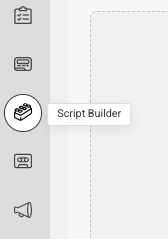
Select the Script Builder icon on the left-hand navigation menu.
2
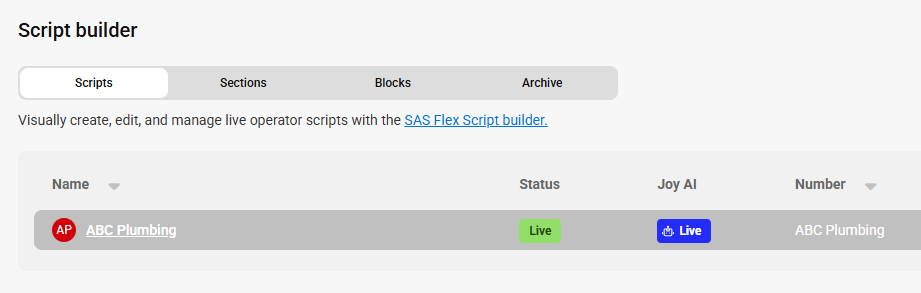
From here, select the script that Joy AI is enabled on.
3
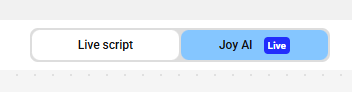
At the top of the next screen, select Joy AI to switch over to the Joy builder.
4
Next, click the play button in the upper right-hand corner to preview the Joy AI workflow.

5
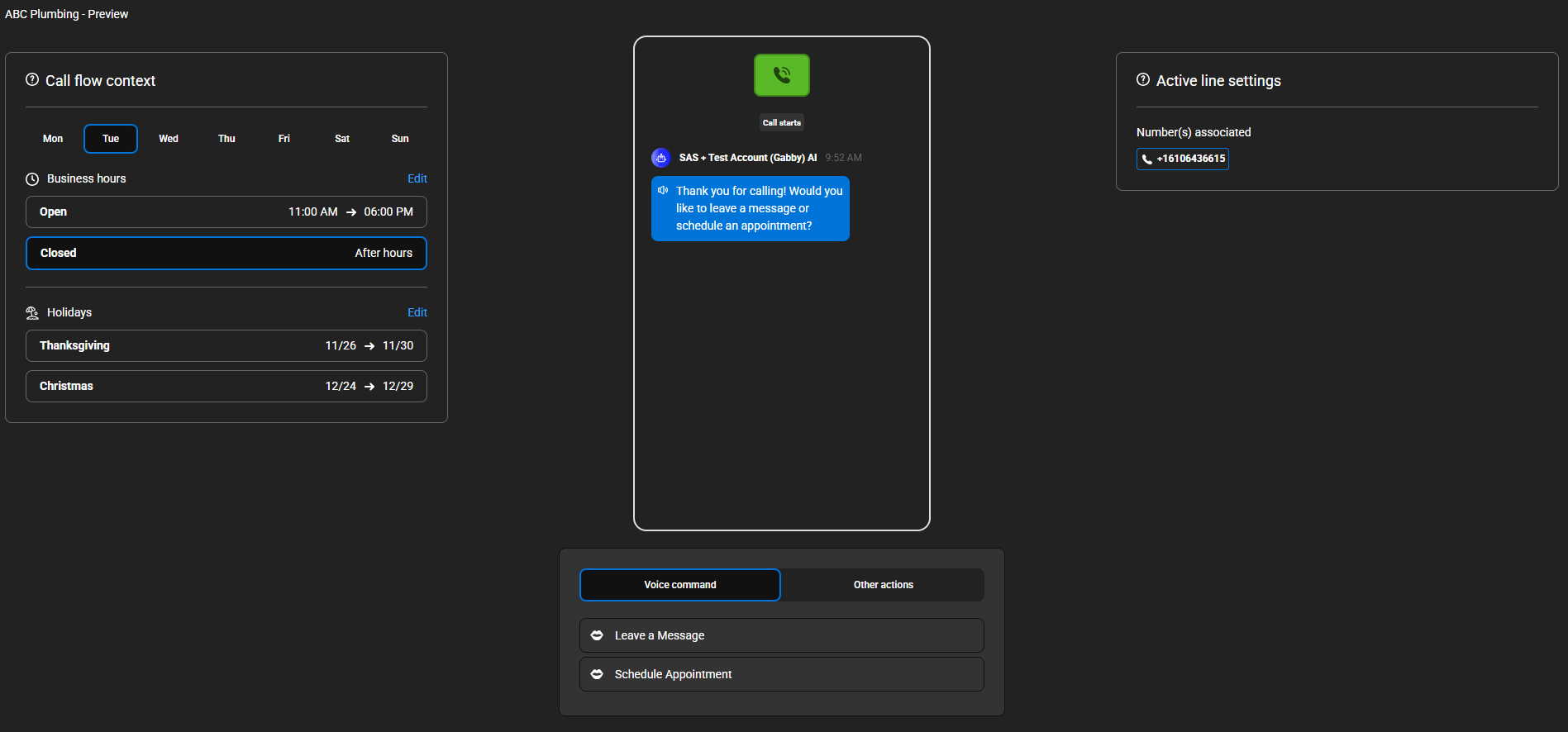
A new window will open displaying your Joy AI preview. On the left-hand side you'll see the associated business hours. In the center, you'll see the Joy script, and to the right you'll see the assigned SAS numbers.
6
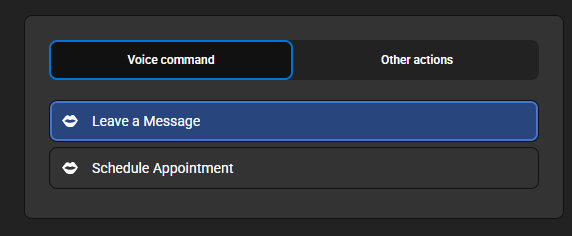
To progress through your Joy script, select one of the available Voice Commands as shown below. In this example, the two call options to choose from are Leave a Message and Schedule Appointment.
7
Once you select a Voice Command, you'll be prompted to begin answering the scripted questions. Simply type in your responses until you've navigated through the entire call flow.