How to Configure a Copy Branch Option Within Joy AI
For users that want to create multiple different paths that collect the same, or most of the same, data but with different Closing steps, using the Copy Branch feature alleviates the need to do double the work.
For example, a Plumber using Joy may want our system to ask the caller if they want to leave a message schedule an appointment. For general messages, we can gather the caller's name, number and what the call is regarding for a return call. For appointment calls, we can gather the same information but also ask what the caller's preferred date and time for an appointment is. Then, we can select a different Outcome so that these calls are more easily identifiable in the Call Log. Let's get started!
1
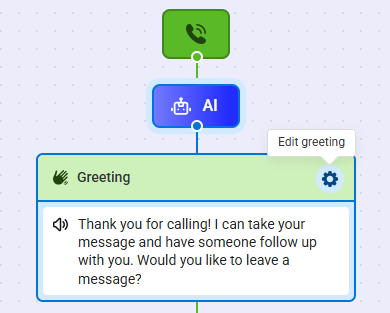
Within the Joy AI builder, the first thing we'll do is update our Greeting to include an option for callers looking to schedule. Click on the Gear icon to edit.
2
A bump out will appear on the right-hand side of your screen. You'll see the text box which includes the default greeting. This can be customized to your needs.
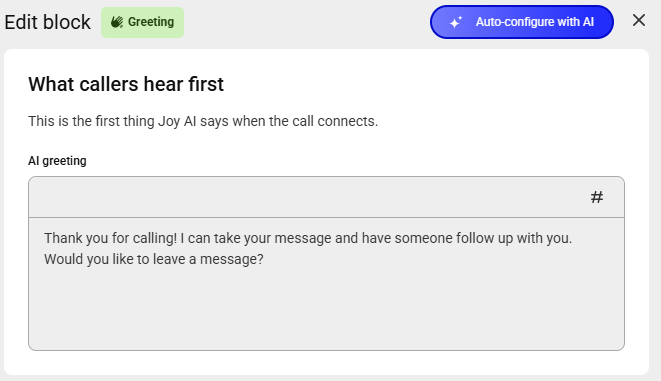
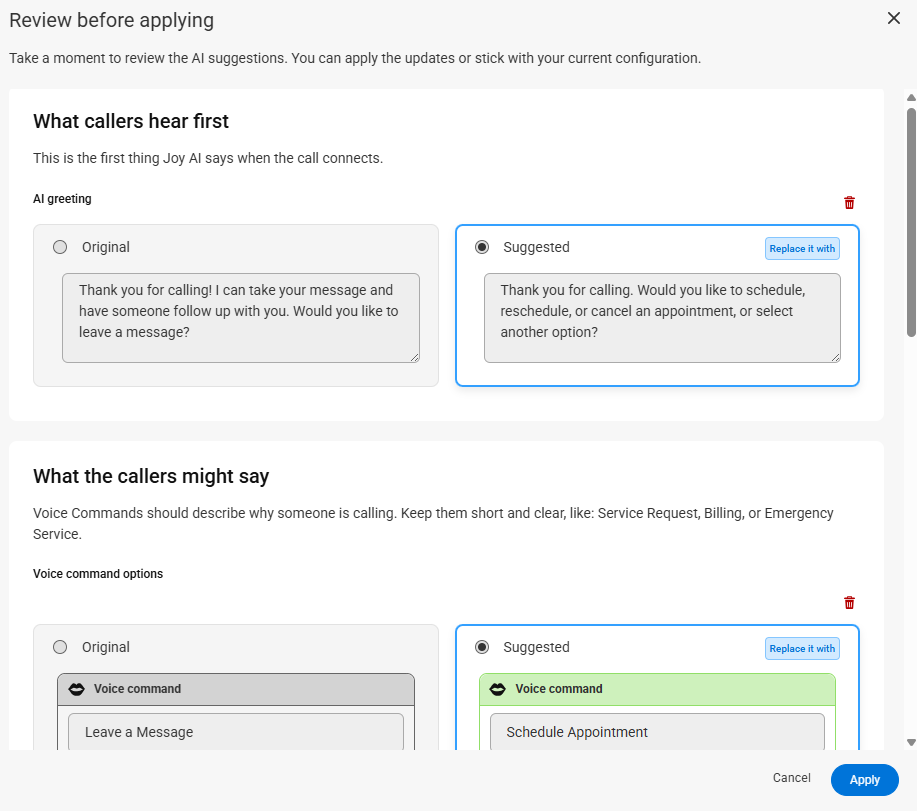
Along the top of the bump out, you can use the Auto-configure with AI button to use generative AI to create a greeting based on your existing live script. For example, if your live script is currently scheduling appointments, the generative AI will suggest a greeting that includes an option for appointment scheduling, along with suggested voice phrases that a caller might respond with.
3
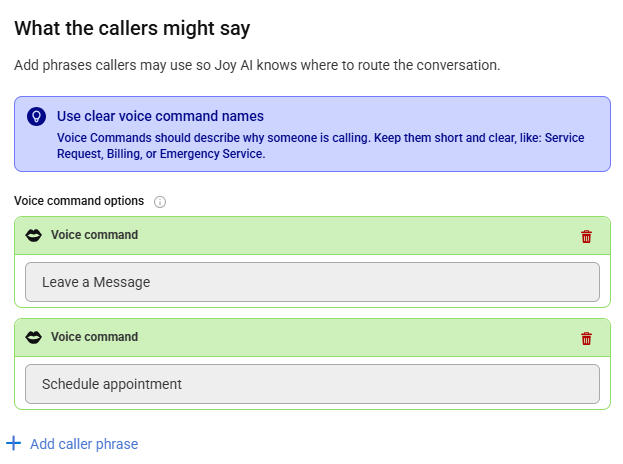
Under the What the callers might say section, we'll need to add another voice command. Click Add caller phrase and add an option for callers looking to schedule.
4
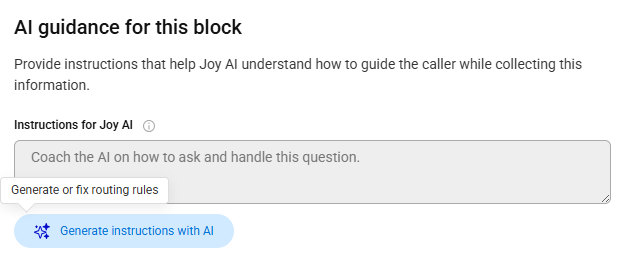
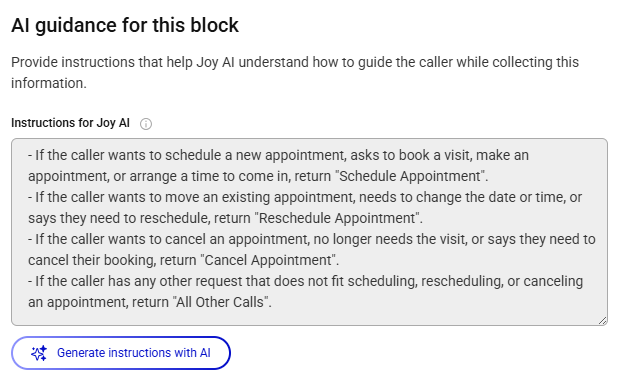
Under the AI Guidance section, you can add instructions that help Joy AI understand how to guide the caller while collecting information. Click the Generate instructions with AI button to auto-configure instructions.
5
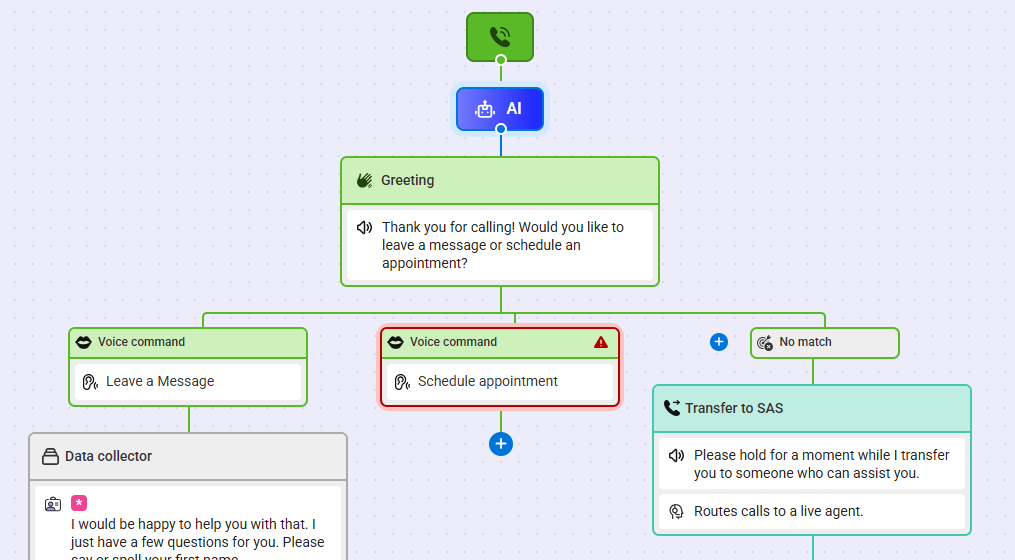
When you are finished editing your Greeting block, click Save. You'll see your new Voice Command added below your Greeting.
6
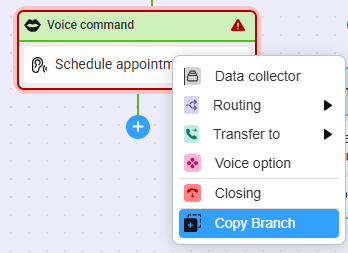
next, click the blue + nodule below the new Voice Command and select Copy Branch.
7
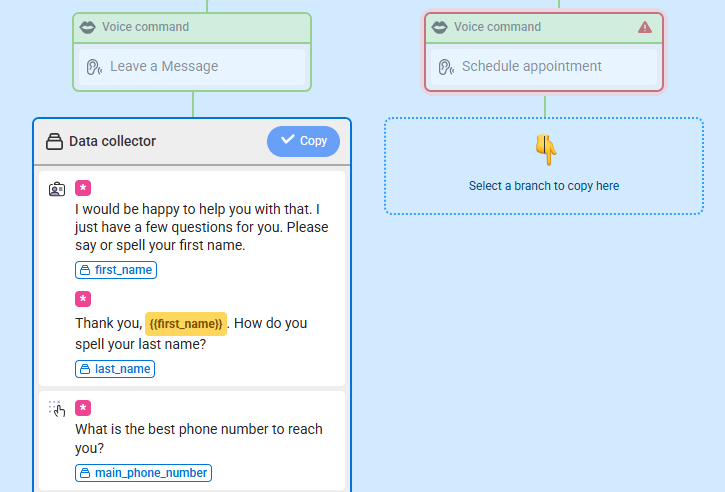
Next, each script branch will be highlighted. Click Copy on the branch you want to copy.
8
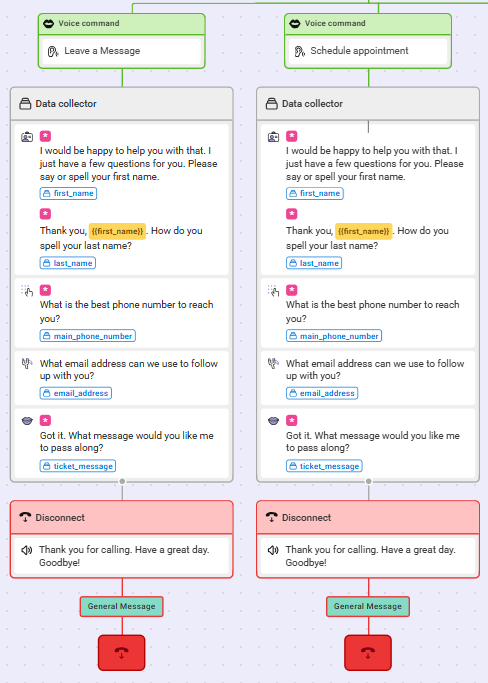
The branch will automatically copy over to your new path section.
9
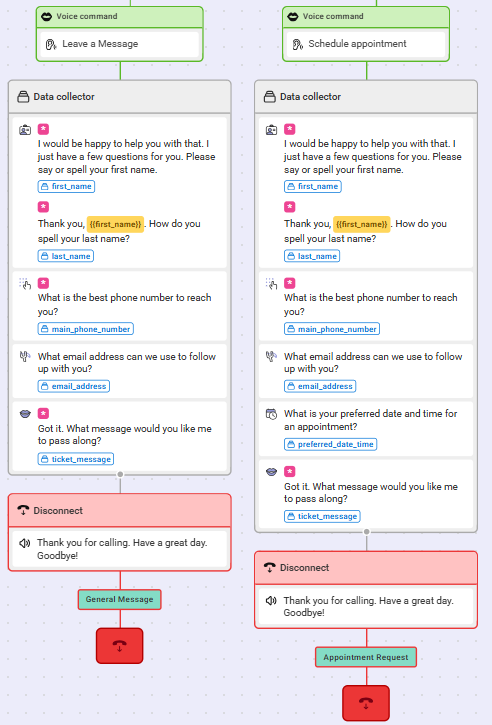
From here, you can add or remove questions by hovering over the applicable section and clicking on the Gear icon in the new branch to edit accordingly. You can also choose to edit the Closing section to change the Outcome and message delivery. In our example, we added a question asking the caller for their preferred date and time for an appointment. We also changed the Outcome to Appointment Request.
10
When you are finished making updates to your Joy AI workflow, don't forget to publish your changes in the upper right-hand corner.


